
In the previous parts of this series, we built a SIPp based call testing agent that tests outbound calls through a Cisco CUBE and uses a large language model (LLM) to diagnose the result. In the last part, the interface was the Claude Desktop app where you typed your prompt directly into the Claude chat window and the agent handled everything from there.
In this part, we are taking a different approach on two fronts:
- The interface moves to Webex App so you can trigger call tests by sending a message to a bot in a Webex space
- The LLM switches to Cohere instead of Claude
Everything else including the SIPp scenario, the Cisco CUBE, the MCP server, the SSH log capture stays the same. This is a good illustration of how a well-structured agent pipeline lets you swap components without rebuilding from scratch. The LLM is just one component, and as long as your integration layer (the Django webhook and the MCP server) stays consistent, you can swap it with relatively minimal code changes.
A sample interaction looks like this:
test 914256587895 via 10.10.2.3
The bot places a SIPp call to number 914852566359, captures the CUBE debug logs, passes them to Cohere LLM, and replies with a plain-language diagnosis, all within a few seconds.
Table of Contents
Why Webex as the Interface?
In an enterprise UC environment, Webex is often already open on everyone’s screen as a collaboration tool. Using it as the front end for a call testing agent means your Telecom team can run a call test without opening a separate tool, logging into a dashboard, or knowing anything about SIPp. They just send a message to the bot which is quite similar to how they talk to other people in the organization.
Architecture Overview
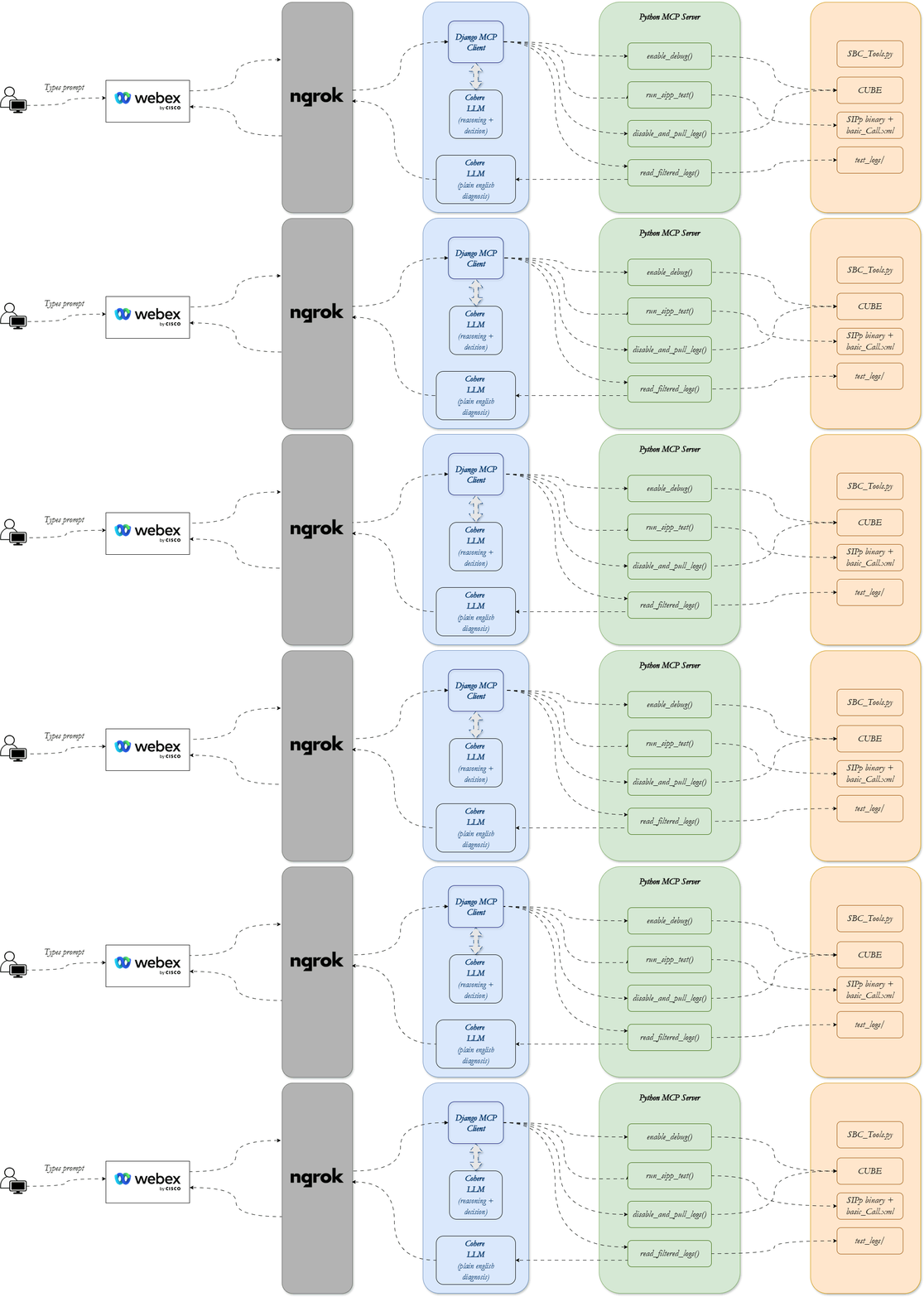
Here is what happens when you send test 914256587895 via 10.10.2.3 in the Webex space:
- Webex fires a webhook POST to your Django app via ngrok
- Django MCP client parses the message text and extracts the phone number & CUBE IP and calls four tools on the MCP server in sequence:
- enable_debug : SSH into the CUBE and enable SIP debug logging specifically debug ccsip messages
- run_sipp_test : execute a SIPp call to the target extension and capture the Call-ID from the SIP INVITE
- disable_and_pull_logs : SSH back into the CUBE, disable debug, pull the full log buffer and save a filtered copy keyed to the Call-ID
- read_filtered_log : read the saved filtered log from disk and return it to Django
- The filtered log is assembled and sent to Cohere LLM with a structured prompt
- Cohere’s plain language diagnosis is posted back to the Webex space
The MCP server runs on FastMCP over HTTP SSE on port 3333. Django runs in ASGI mode on port 8000 via uvicorn. An ngrok tunnel exposes port 8000 to the public internet so Webex can reach your webhook.
Project Setup
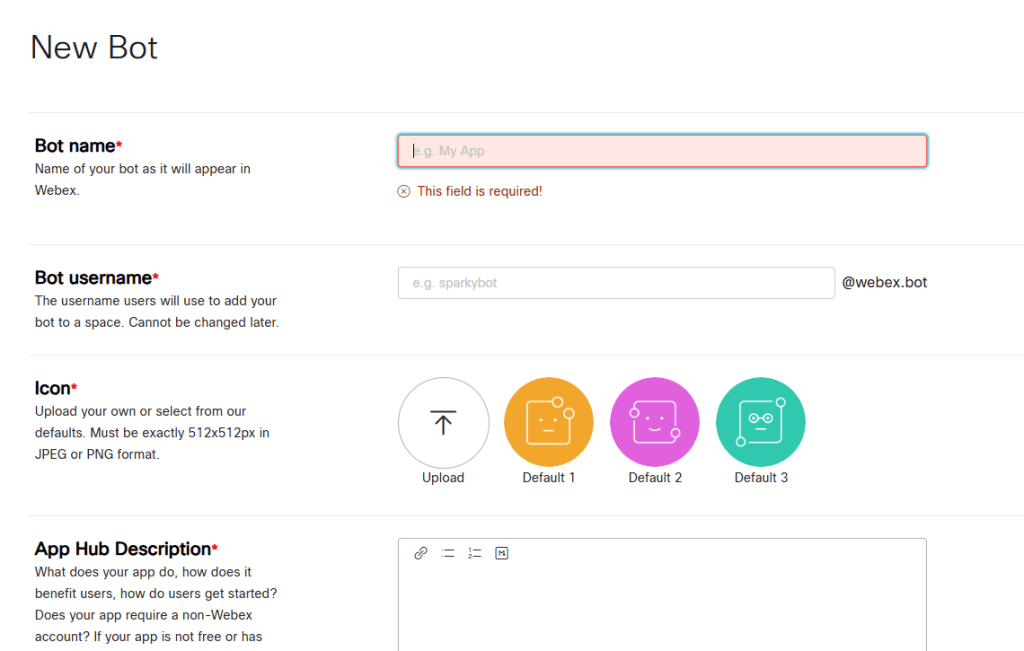
- Go to My Webex Apps | Webex for Developers. Click on “Create New App” –> “Onboard Bot”.
- Fill out the information and click on “Add Bot”. Once added, you will see your bot’s secret token value. Copy that as you will need it later.
- Create a new Django project:
django-admin startproject SIPp_Webex_Cohere
cd SIPp_Webex_Cohere
python3 manage.py startapp Webex_Cohere_Agent
- Install the base packages.
pip install fastmcp uvicorn netmiko httpx django
- Add your app to INSTALLED_APPS in settings.py of your Django project
INSTALLED_APPS = [
    ...
    'Webex_Cohere_Agent',
]
- Create config.json file inside the Webex_Cohere_Agent app folder. All runtime configuration lives in a single config.json file at the project root. Populate it with your credentials.
- CUBE_USER and CUBE_PASS : CUBE login credentials
- SIPP_LOCAL_IP : The IP of the machine running SIPp application
- LLM_PROVIDER : “cohere”
- LLM_API_KEY : Cohere API key
- WEBEX_BOT_TOKEN : Token that you got on the Webex portal earlier
- BOT_EMAIL : A random email ID that can be associated with your bot to identify it uniquely.
I’ve deliberately chosen a flat JSON file over environment variables. Environment variables work well in containerised production deployments but for a project where you are actively developing and frequently restarting, a single file you can open and edit in seconds is more practical. If you do decide to deploy it in production then you can choose to go with environment variables instead of a plain text file.
{ "CUBE_USER" : "", "CUBE_PASS" : "", "SIPP_LOCAL_IP" : "", "LLM_PROVIDER" : "cohere", "LLM_API_KEY" : "", "WEBEX_BOT_TOKEN" : "", "BOT_EMAIL" : ""}
The Code
The full code for this project is available on GitHub. A detailed read-me file is on Github. Please go through that to understand the intricacies of the code in detail.
https://github.com/simranjit-uc/webex_agenticai_sipp_testing
Running Django Under ASGI and Why It Matters
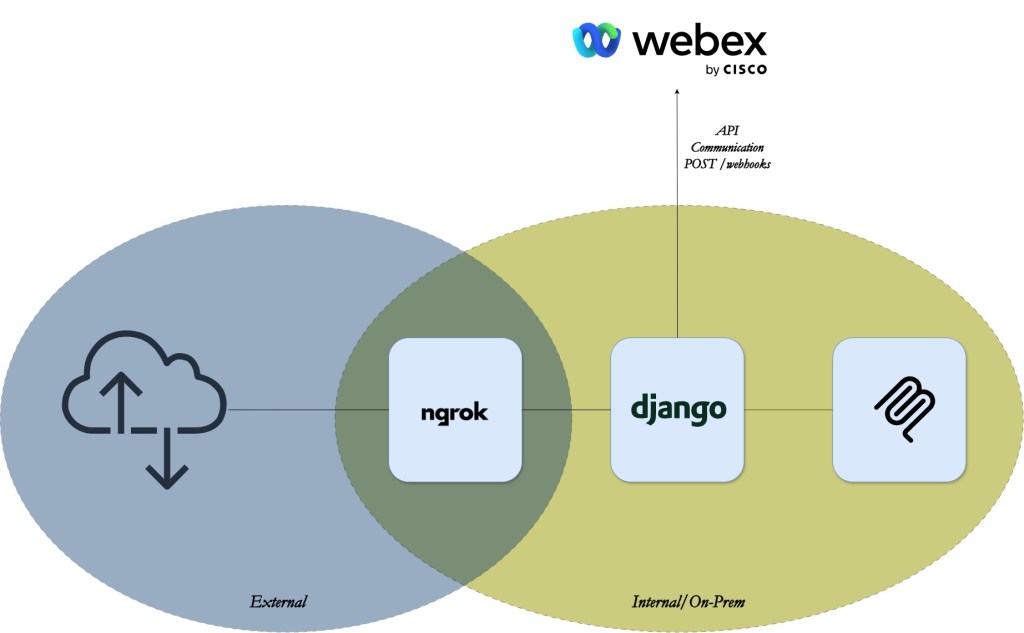
In this project we replace the auto-generated asgi.py with a custom asgi.py to hook into the ASGI lifespan startup event. On startup it queries ngrok’s local API at http://127.0.0.1:4040 for the current public tunnel URL then registers the Webex webhook automatically without any manual intervention. This requires running Django’s web server under ASGI using uvicorn:
uvicorn SIPp_Webex_Cohere.asgi:application --host 0.0.0.0 --port 8000
import osimport jsonimport httpxfrom pathlib import Pathfrom django.conf import settingsfrom urllib.parse import urlparsefrom django.core.asgi import get_asgi_applicationos.environ.setdefault("DJANGO_SETTINGS_MODULE", "SIPp_Webex_Cohere.settings")django_app = get_asgi_application()CONFIG_PATH = ( Path(__file__).resolve().parent.parent / "Webex_Cohere_Agent" / "config.json")async def _get_ngrok_url() -> str | None: """Query ngrok's local API for the current public HTTPS tunnel URL.""" try: async with httpx.AsyncClient() as client: resp = await client.get("http://127.0.0.1:4040/api/tunnels", timeout=5) for tunnel in resp.json().get("tunnels", []): if tunnel["proto"] == "https": return tunnel["public_url"] except Exception: pass return Noneasync def _register_webhook(ngrok_url: str) -> None: with open(CONFIG_PATH) as f: cfg = json.load(f) token = cfg["WEBEX_BOT_TOKEN"] target = ngrok_url.rstrip("/") + "/chat_webhook/" async with httpx.AsyncClient() as client: r = await client.get( "https://webexapis.com/v1/webhooks", headers={"Authorization": f"Bearer {token}"}, ) for wh in r.json().get("items", []): await client.delete( f"https://webexapis.com/v1/webhooks/{wh['id']}", headers={"Authorization": f"Bearer {token}"}, ) r = await client.post( "https://webexapis.com/v1/webhooks", headers={ "Authorization": f"Bearer {token}", "Content-Type": "application/json", }, json={ "name": "SIPp Agent Webhook", "targetUrl": target, "resource": "messages", "event": "created", }, ) if r.status_code == 200: print(f"[startup] Webhook registered → {target}") else: print(f"[startup] Webhook registration failed: {r.status_code} {r.text}")async def application(scope, receive, send): if scope["type"] == "lifespan": while True: msg = await receive() if msg["type"] == "lifespan.startup": url = await _get_ngrok_url() if url: # Inject ngrok hostname into Django's ALLOWED_HOSTS at runtime ngrok_host = urlparse(url).netloc if ngrok_host not in settings.ALLOWED_HOSTS: settings.ALLOWED_HOSTS.append(ngrok_host) await _register_webhook(url) else: print( "[startup] ngrok not found - start ngrok first, then restart Django" ) await send({"type": "lifespan.startup.complete"}) elif msg["type"] == "lifespan.shutdown": await send({"type": "lifespan.shutdown.complete"}) return else: await django_app(scope, receive, send)
Because the lifespan fires on every uvicorn startup, the webhook re-registers automatically whenever you restart Django even if the ngrok URL changed.
Ngrok exposes a local management API at http://127.0.0.1:4040 regardless of which tunnel URL is currently active. _get_ngrok_url() queries /api/tunnels and picks the first HTTPS entry. This is always reachable while ngrok is running, so the lifespan code never needs the public URL hard-coded anywhere.
The MCP Server
The MCP server (SIPp_MCP_Svr_Cohere_v1.py) exposes four tools over HTTP SSE using FastMCP:
- enable_debug : SSH into the CUBE and enable SIP debug logging specifically debug ccsip messages
- run_sipp_test : execute a SIPp call to the target extension and capture the Call-ID from the SIP INVITE
- disable_and_pull_logs : SSH back into the CUBE, disable debug, pull the full log buffer and save a filtered copy keyed to the Call-ID
- read_filtered_log : read the saved filtered log from disk and return it to Django
The SSH and Netmiko helper functions live in SBC_Tools.py – the same file used in Part 4.
FastMCP HTTP mode vs stdio
The server initialises with stateless_http=True:
app = mcp.http_app(stateless_http=True)
This selects the HTTP SSE transport instead of stdio. Claude Desktop communicates with MCP servers over stdio (reading from stdin, writing to stdout) but non-Claude clients like our Django one here talk to the server over HTTP. stateless_http=True tells FastMCP not to maintain session state between calls, which is correct for a webhook-driven agent where each request is fully independent.
The tools are served at http://localhost:3333/mcp/ by default. Django calls them using httpx.AsyncClient, posting a JSON-RPC tools/call payload and reading the SSE event stream in the response.
How Call-ID filtering narrows the log
Each SIPp call gets a unique Call-ID embedded in the SIP INVITE. SIPp injects it via the [call_id] keyword in basic_call.xml, so every call to the same extension gets a distinct value. After the test, the raw CUBE debug log can be thousands of lines covering all concurrent router traffic.
_extract_call_id() pulls the value from SIPp’s own _messages.log:
match = re.search(r"Call-ID:\\s*(\\S+)", content, re.IGNORECASE)
_filter_log_by_call_id() then collects every line in the CUBE log that contains that Call-ID, plus a few more lines of context window around each match:
for i, line in enumerate(lines):
    if call_id in line:
        start = max(0, i - context)
        end   = min(len(lines), i + context + 1)
        matched_indices.update(range(start, end))
The context window is critical. Response codes like SIP/2.0 404 Not Found and reason phrases that explain what happened often appear on adjacent lines without the Call-ID itself. Without the window you get the Call-ID lines but miss the diagnostic information immediately surrounding them.
Run the MCP server on port 3333:
cd ~/SIPp_Webex_Cohere/Webex_Cohere_Agent
uvicorn SIPp_MCP_Svr_Cohere_v1:app --host localhost --port 3333
Starting Everything Up
You need three terminals running simultaneously.
Terminal 1 – MCP server:
cd SIPp_Webex_Cohere/Webex_Cohere_Agent
uvicorn SIPp_MCP_Svr_Cohere_v1:app --host localhost --port 3333
Terminal 2 – ngrok:
ngrok http 8000
Terminal 3 – Django ASGI (start ngrok first):
cd SIPp_Webex_Cohere
uvicorn SIPp_Webex_Cohere.asgi:application --host 0.0.0.0 --port 8000
The webhook registers automatically at Django startup. Watch the Django server uvicorn terminal for the confirmation line:
[startup] Webhook registered → https://58db-96-55-244-119.ngrok-free.app/chat_webhook/
End-to-End Flow
When you send a message to the bot, a chain of events kicks off that is worth tracing from end to end.
- Webex delivers the message as an HTTP POST to your registered webhook URL. The payload is deliberately thin. It contains the message ID, the room ID, and the sender’s email, but not the message text itself. That is by design because Webex assumes your endpoint may be publicly reachable, so it withholds the content and forces you to fetch it separately using your bot token. The first thing the Django webhook view does, then, is make a GET request back to the Webex Messages API to retrieve the actual text.
- Once the text is in hand, the view extracts two pieces of information from it – the extension or phone number to test, and the CUBE IP address to run the debug against. Both are parsed with simple regex without any natural language processing. If either is missing, the bot replies immediately with a usage hint and returns. There is no point running a SIP test with incomplete parameters.
- With both values confirmed, the view sends a single acknowledgement message to the room and saves its message ID. This is the Running SIP test. Please wait… the user sees. Critically, it is sent once and then edited in place at each subsequent stage rather than spawning new messages.
- The four MCP tools then run in strict sequence over a single httpx.AsyncClient connection to the MCP server. Each step updates the acknowledgement message so the user can see progress in real time without being flooded with separate messages.
- When the LLM returns its diagnosis, the acknowledgement message is edited one final time with the full formatted result. The user ends up with a single message in the thread.
With everything running, you type your query in plain english language like Test call to <number> via < your CUBE IP> in your Webex space. Within a few seconds you should see a response from the bot along the lines of:
The SIP trace shows a call attempt to <your number>. The CUBE forwarded the INVITE
to CUCM and received a 200 OK after a ringing phase. The call was terminated normally
with a BYE from the originating side. No errors or rejections were observed in the
signalling path.
If the call fails with a 404, a 486 Busy, or a timeout, Cohere will describe what that response code means and where in the call flow things broke down. The output is readable by anyone on the team, not just someone who knows how to parse a SIP trace.
Scope and Limitations
It is worth being clear about what this agent does and does not do.
What it does: places a single SIPp test call, captures the raw CUBE debug output for that call and asks an LLM to explain the signalling in plain language.
What it does not do: it does not verify media and it does not test call quality. A “successful” result in the SIP sense only means the signalling completed without errors.
As with any LLM-based analysis, the diagnosis is a starting point & not a definitive root cause. It is most useful for quickly orienting someone to what happened before they go deeper into the logs themselves.
Youtube Video
I am working on an explanatory video which will be published on my YouTube channel in the next couple of days. Until then, you can check out other videos on my channel and if you happen to find them useful then please subscribe to the channel as well. That helps a lot!!
https://www.youtube.com/@learnuccollab
I hope this post gives you some ideas & sparks your imagination to bring AI capabilities into your existing Unified Communication systems. Feel free to drop your questions or feedback in the comments below. Until then, Keep Learning!!

