
If you work with Cisco CUCM or any SIP-based telephony platform, at some point you’ve needed to test whether a phone number actually works meaning whether it rings, whether it answers, whether the audio is clean, whether it rolls over to voicemail etc. Doing this manually is tedious and doesn’t scale. That’s where SIPp comes in.
I first worked with this tool almost 4.5 years back when I was working on automating the testing process for one of our customers. I was again recently asked by another customer to develop a solution that can not only do the testing from the system administrator’s point of view but also have a user friendly interface for non-technical people to utilize. That’s when I picked it up again & I thought I should share the solution and its use cases with a broader audience.
SIPp is a free, open-source SIP testing tool that can generate SIP traffic, play audio, and measure call performance – all driven by XML scenario files you write yourself. This will be a multi-part series and in this Part 1, I am going to explain what SIPp is, how it can be run standalone, its installation, XML scenarios, audio playback, output options, and practical tips for testing phone extensions.
In future posts, we’ll take the learnings further and wrap SIPp in Python to build a fully automated phone testing solution. Since AI is the flavor of the season, We are also going to bring AI into the picture and agentify the whole process.
- What is SIPp?
- Installing SIPp
- Understanding SIPp XML Scenario Files
- Scenario 1 – Basic Call Signaling without Audio
- Scenario 2 – Call with Audio
- Audio with SIPp
- SIPp Output and Statistics
- YouTube Video
- What’s Next
What is SIPp?
SIPp is a performance and functional testing tool for SIP based systems. It works by sending SIP messages defined in XML scenario files and can act as a UAC (User Agent Client : the caller), a UAS (User Agent Server : the callee).
XML scenario files define exactly what SIP messages to send, what responses to expect, what audio to play, and what to measure.
Some of the practical situations where SIPp can prove to be particularly useful are:
- Verifying that phone numbers or extensions are reachable
- Load testing by simulating hundreds or thousands of simultaneous calls
- Regression testing after CUCM configuration changes
- Testing IVR systems, hunt groups, call queues, and voicemail
Installing SIPp
On Ubuntu, SIPp is available directly from the package manager but the stock version may be missing important features like PCAP playback and RTP streaming. It’s better to build from source with all features enabled:
sudo apt updatesudo apt install -y pkg-config dh-autoreconf ncurses-dev build-essential libssl-dev libpcap-dev libncurses5-dev libsctp-dev lksctp-tools cmakegit clone https://github.com/SIPp/sipp.gitcd sippcmake .make -j$(nproc)
Note : You can verify the build by sipp -v
Understanding SIPp XML Scenario Files
Everything SIPp does is driven by an XML scenario file. The structure is straightforward – you define a sequence of Send, Recv, Pause and nop (no operation) elements that describe the call flow.
Basic Structure
This is a bare-bone structure of an XML file.
<scenario name="My Test Scenario"> <!-- Send a SIP request --> <send> ... </send> <!-- Wait for a response --> <recv response="180" optional="true"/> <recv response="200" /> <!-- Pause for a duration --> <pause milliseconds="3000"/> <!-- Execute an action without sending a message --> <nop> <action> ... </action> </nop></scenario>
Key XML Elements
- <send> – Wraps a raw SIP message inside a
<![CDATA[ ... ]]>block. The CDATA block is essential because SIP messages contain characters that would otherwise break XML parsing (e.g. – angle brackets in URIs). - <recv> – Waits for a specific SIP response or request. Key attributes:
response="200"– wait for a 200 OKoptional="true"– don’t fail if this message doesn’t arrive
- <pause> – Suspends the scenario for a fixed time in milliseconds. It’s commonly used to simulate hold time or wait for a UAS to do something.
- <nop> – A no-operation element that carries an
<action>block. It’s commonly used to trigger RTP playback, log messages, execute external commands, or manipulate variables without sending any SIP message.
SIPp Keyword Variables
SIPp has a set of built-in keywords that are automatically substituted at runtime. The most important ones are:
| Keyword | Description |
|---|---|
[local_ip] | Local IP address of the machine running SIPp |
[local_port] | Local SIP port (default 5060) |
[remote_ip] | IP address of the target SIP server |
[remote_port] | Port of the target SIP server |
[service] | The -s argument passed on the command line (the called number/extension) |
[call_id] | Unique Call-ID generated per call |
[call_number] | Unique call index, used as a tag |
[branch] | Unique Via branch parameter |
[media_port] | RTP port allocated for this call |
[len] | Auto-calculated Content-Length of the SDP body |
[next_url] | Contact/Record-Route URI from the last received response – use this in ACK and BYE |
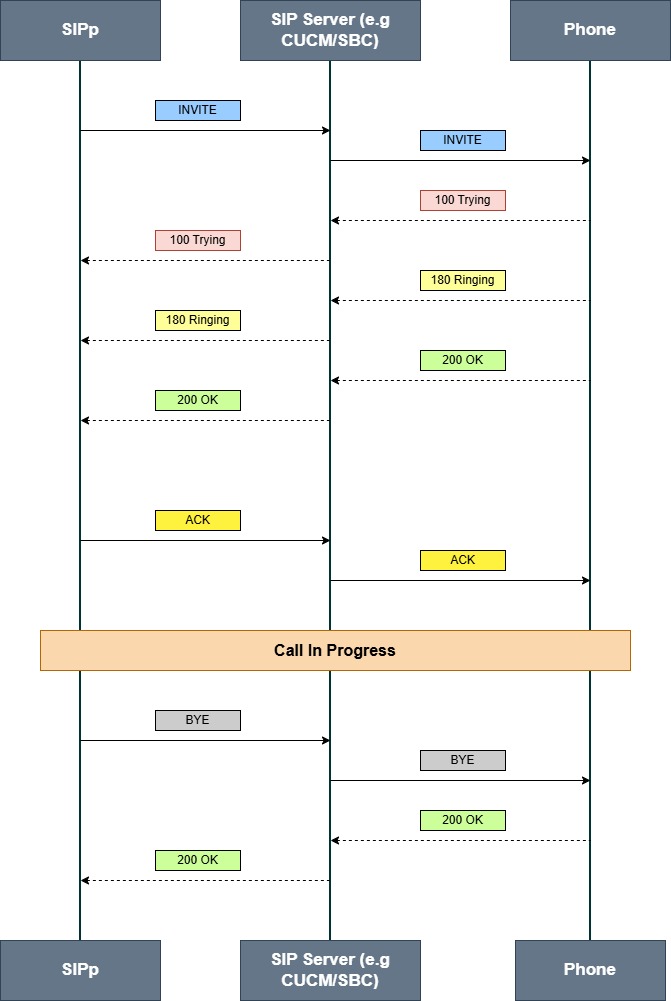
Scenario 1 – Basic Call Signaling without Audio
This scenario places a call to a phone number, keeps the call active for a few seconds and then hangs up.
<scenario name="Basic SIP Call"> <!-- Send INVITE --> <send> <![CDATA[INVITE sip:[service]@[remote_ip]:[remote_port] SIP/2.0Via: SIP/2.0/UDP [local_ip]:[local_port];branch=[branch]From: "SIPp" <sip:sipp@[local_ip]>;tag=[call_number]To: <sip:[service]@[remote_ip]>Call-ID: [call_id]CSeq: 1 INVITEContact: <sip:sipp@[local_ip]:[local_port]>Max-Forwards: 70Content-Length: 0 ]]> </send> <!-- Expect 100 Trying (optional) --> <recv response="100" optional="true"/> <!-- Expect 180 Ringing (optional) --> <recv response="180" optional="true"/> <!-- Expect call answered --> <recv response="200"/> <!-- Send ACK --> <send> <![CDATA[ACK sip:[service]@[remote_ip]:[remote_port] SIP/2.0Via: SIP/2.0/UDP [local_ip]:[local_port];branch=[branch]From: "SIPp" <sip:sipp@[local_ip]>;tag=[call_number]To: <sip:[service]@[remote_ip]>Call-ID: [call_id]CSeq: 1 ACKContent-Length: 0 ]]> </send> <!-- Stay on call for 5 seconds --> <pause milliseconds="5000"/> <!-- Hang up --> <send> <![CDATA[BYE sip:[service]@[remote_ip]:[remote_port] SIP/2.0Via: SIP/2.0/UDP [local_ip]:[local_port];branch=[branch]From: "SIPp" <sip:sipp@[local_ip]>;tag=[call_number]To: <sip:[service]@[remote_ip]>Call-ID: [call_id]CSeq: 2 BYEContent-Length: 0 ]]> </send> <recv response="200"/>
This scenario basically comprises 7 blocks to complete the call
- Lines 6 to 18 contain the first <send> block where INVITE is sent
- Between lines 21 and 27, we have a bunch of
<recv>blocks to handles the incoming SIP messages from the UAS side - Lines 30 to 40 contain the second
<send>block where ACK is sent to complete the SIP dialog - At this point, the call is connected successfully. Line 43 now kicks in and “pauses” the call for 5 seconds. This means that the call will remain active for 5 seconds.
- After the 5 second pause has elapsed, the
<send>block in lines 46-56 sends BYE to disconnect the call. - Line 58 has the final <recv> block to accept 200 OK from the UAS in response to the previous BYE
Here is how the call flow will look like in the ladder format
Scenario 2 – Call with Audio
This scenario places a call to a phone number, keeps the call active for a few seconds, plays an audio message while the call is active and then hangs up.
<scenario name="SIP Call with RTP Media"> <!-- Send INVITE with SDP --> <send> <![CDATA[INVITE sip:[service]@[remote_ip]:[remote_port] SIP/2.0Via: SIP/2.0/UDP [local_ip]:[local_port];branch=[branch]From: "SIPp" <sip:sipp@[local_ip]>;tag=[call_number]To: <sip:[service]@[remote_ip]>Call-ID: [call_id]CSeq: 1 INVITEContact: <sip:sipp@[local_ip]:[local_port]>Max-Forwards: 70Content-Type: application/sdpContent-Length: [len]v=0o=- 0 0 IN IP4 [local_ip]s=RTP Test Callc=IN IP4 [local_ip]t=0 0m=audio [media_port] RTP/AVP 0 8 101a=rtpmap:0 PCMU/8000a=rtpmap:8 PCMA/8000a=rtpmap:101 telephone-event/8000a=fmtp:101 0-15a=sendrecv ]]> </send> <!-- Optional responses --> <recv response="100" optional="true"/> <recv response="180" optional="true"/> <!-- Call answered --> <recv response="200"/> <!-- Send ACK --> <send> <![CDATA[ACK sip:[service]@[remote_ip]:[remote_port] SIP/2.0Via: SIP/2.0/UDP [local_ip]:[local_port];branch=[branch]From: "SIPp" <sip:sipp@[local_ip]>;tag=[call_number]To: <sip:[service]@[remote_ip]>Call-ID: [call_id]CSeq: 1 ACKContent-Length: 0 ]]> </send> <!-- Start RTP playback --> <nop> <action> <exec rtp_stream="output.wav"/> </action> </nop> <!-- Stay in call --> <pause milliseconds="10000"/> <!-- Hang up --> <send> <![CDATA[BYE sip:[service]@[remote_ip]:[remote_port] SIP/2.0Via: SIP/2.0/UDP [local_ip]:[local_port];branch=[branch]From: "SIPp" <sip:sipp@[local_ip]>;tag=[call_number]To: <sip:[service]@[remote_ip]>Call-ID: [call_id]CSeq: 2 BYEContent-Length: 0 ]]> </send> <recv response="200"/></scenario>
Important : Notice the empty line 17 between
<content-length>and<v=0>. This is mandatory. The SIP parser on the remote end uses this blank line to determine where the headers end and the message body begins. Missing this line is one of the most common causes of INVITE failures.
Audio with SIPp
rtp_stream (Direct WAV Playback)
There are multiple ways of playing the audio after the call has connected. One of the simpler ways that we have also used in the above example is <rtp_stream> . It plays a WAV file directly as an RTP stream without needing any additional configuration.
<nop> <action> <exec rtp_stream="output.wav"/> </action></nop>
Important : The WAV file must be encoded as G.711a (PCMA), 8kHz, mono.
SIPp Output and Statistics
One of SIPp’s most powerful features is its real-time statistics output. Understanding what SIPp is telling you is essential for interpreting test results.
Real-Time Screen Output
When running interactively, SIPp shows a live stats screen in the terminal. The following is the output of “Working Scenario 1”
------------------------------ Scenario Screen -------- [1-9]: Change Screen -- Call rate (length) Port Total-time Total-calls Remote-host 10.0(0 ms)/1.000s 5060 5.03 s 1 198.18.133.3:5060(UDP) Call limit 1 hit, 10.0 s period 1 ms scheduler resolution 1 calls (limit 150) Peak was 1 calls, after 0 s 0 Running, 2 Paused, 4 Woken up 0 dead call msg (discarded) 0 out-of-call msg (discarded) 3 open sockets 0/0/0 UDP errors (send/recv/cong) 0 Total RTP pckts sent 0.000 last period RTP rate (kB/s) Messages Retrans Timeout Unexpected-Msg0 : INVITE ----------> 1 01 : 100 <---------- 1 0 0 02 : 180 <---------- 1 0 0 03 : 200 <---------- 1 1 0 04 : ACK ----------> 1 15 : Pause [ 5000ms] 1 06 : BYE ----------> 0 07 : 200 <---------- 0 0 0 0------- Waiting for active calls to end. Press [q] again to force exit. -------
Once the test has ended, it generates the following report.
------------------------------ Test Terminated ------------------------------------------------------------- Statistics Screen ------- [1-9]: Change Screen -- Start Time | 2026-06-14 14:25:04.135321 1781472304.135321 Last Reset Time | 2026-06-14 14:25:12.398797 1781472312.398797 Current Time | 2026-06-14 14:25:12.407512 1781472312.407512-------------------------+---------------------------+-------------------------- Counter Name | Periodic value | Cumulative value-------------------------+---------------------------+-------------------------- Elapsed Time | 00:00:00:008000 | 00:00:00:008000 Call Rate | 0.000 cps | 0.121 cps-------------------------+---------------------------+-------------------------- Incoming calls created | 0 | 0 Outgoing calls created | 0 | 1 Total Calls created | | 1 Current Calls | 0 |-------------------------+---------------------------+-------------------------- Successful call | 0 | 1 Failed call | 0 | 0-------------------------+---------------------------+-------------------------- Call Length | 00:00:00:000000 | 00:00:00:000000------------------------------ Test Terminated --------------------------------
Some of the key counters to watch are:
- Successful call – calls that completed the full scenario without error
- Failed call – calls that hit an unexpected response or timeout
- Retransmissions – indicates packet loss or slow responses on the network
- Unexpected messages – responses SIPp didn’t expect which often points to dial plan issues
CSV Statistics Output
SIPp can also write detailed per-second statistics to a CSV file using the -trace_stat flag:
sipp <CUCM/Phone System IP> -sf <XML Scenario filename> -s <Phone extension> -trace_stat -stf <Name/Path of the CSV file>
Note : This is very useful for post-test analysis and especially if you are integrating this Python.
Log Files
SIPp can write several types of log files. This is extremely useful if you want to move beyond standard testing & analyze the log data programmatically.
| Flag | File | Contents |
|---|---|---|
-trace_msg | <scenario>_messages.log | Full SIP message dumps |
-trace_err | <scenario>_errors.log | Error and unexpected message log |
-trace_logs | <scenario>_logs.log | <log> action output from the scenario if provided |
-trace_stat | <scenario>_stats.csv | Per-second CSV statistics |
YouTube Video
What’s Next
At this point you have everything you need to run SIPp standalone. With this you can write a scenario, prepare your audio file, and fire calls at any SIP destination. That’s genuinely useful for one-off testing and troubleshooting.
But when you need to test hundreds of phone numbers on a schedule, parse the results automatically or trigger tests from a web app, you need to go further. That’s exactly what we will explore in the coming parts. The objective is to not just make random phone calls but also to look at the data being exchanged on these calls at a deeper level. That’s the only way to truly utilize the full capabilities of SIPp to build scalable solutions.
Please feel free to share your feedback/suggestions, if any. Until then, Happy Learnings!!
 Learn UC Collaboration
[…] Part 1 of this series, we got SIPp running from the ground up including installation, XML scenarios, RTP […]
LikeLike